Linux Performance Benchmark
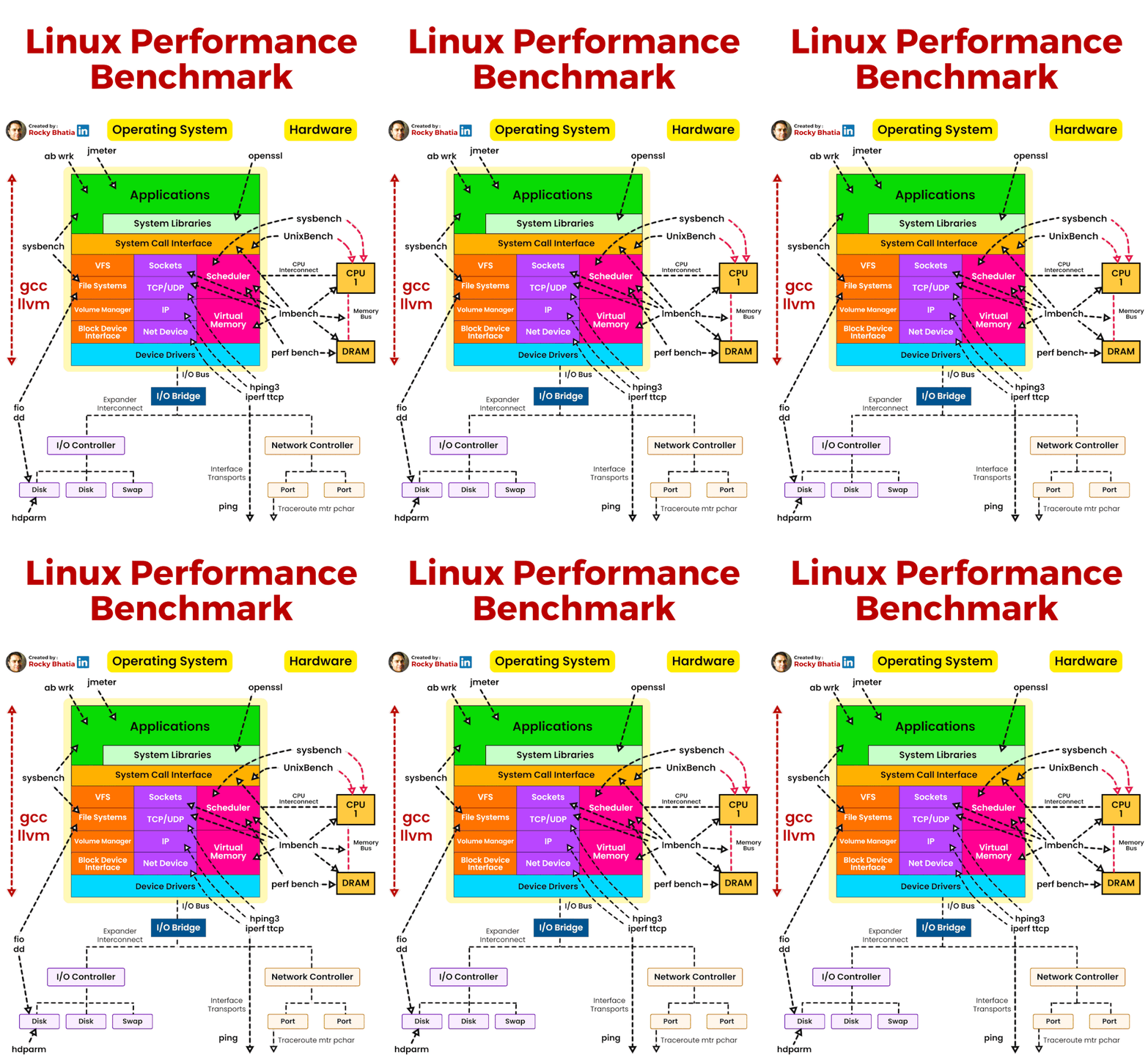
#linux #benchmark #performance
𝐀𝐧𝐚𝐥𝐲𝐳𝐞 𝐀𝐧𝐲 𝐋𝐢𝐧𝐮𝐱 𝐒𝐲𝐬𝐭𝐞𝐦 𝐢𝐧 𝟔𝟎 𝐒𝐞𝐜𝐨𝐧𝐝𝐬
In 60 seconds you can get a high level idea of system resource usage and running processes by running the following ten commands:
1. uptime This is a quick way to view the load averages, which indicate the number of tasks (processes) wanting to run
2. dmesg | tail This views the last 10 system messages, if there are any. Look for errors that can cause performance issues.
3. vmstat 1 Short for virtual memory stat, vmstat(8) is a commonly available tool (first created for BSD decades ago). It prints a summary of key server statistics on each line.
4. mpstat -P ALL 1 This command prints CPU time breakdowns per CPU, which can be used to check for an imbalance. A single hot CPU can be evidence of a single-threaded application.
5. pidstat 1 Pidstat is a little like top’s per-process summary, but prints a rolling summary instead of clearing the screen. This can be useful for watching patterns over time, and also recording what you saw (copy-n-paste) into a record of your investigation.
6. iostat -xz 1 This is a great tool for understanding block devices (disks), both the workload applied and the resulting performance.
7. free -m
8. sar -n DEV 1 check network interface throughput: rxkB/s and txkB/s, as a measure of workload, and also to check if any limit has been reached
9. sar -n TCP,ETCP 1 This is a summarized view of some key TCP metrics
10. top The top command includes many of the metrics we checked earlier. It can be handy to run it to see if anything looks wildly different from the earlier commands, which would indicate that load is variable.